Create a storage space request
You can fill out and submit storage quota applications for Coscine via the Coscine JARDS platform. Further information on the underlying process can be found here.
Preparing a storage space request
Before you submit a storage space application, you must work through the following checklist:
- Check whether you are entitled to request storage space (students and external parties cannot request storage space; only the supervisor or project leader entitled to request storage space may do so).
- Create a project and any associated sub-projects in Coscine (see Create a project and Sub-projects).
- Calculate how much storage space you will need for the main project and the respective sub-projects.
- Decide how you wish to store the metadata. Select existing metadata profiles for the planned resources or create your own (see Metadata and Metadata Profiles). The metadata profile must be created before the storage space application is submitted.
- Please contact your organisation’s RDM team if your storage requirements exceed 125 TB. In this case, a scientific review is required.
Selecting the resource type and logging in
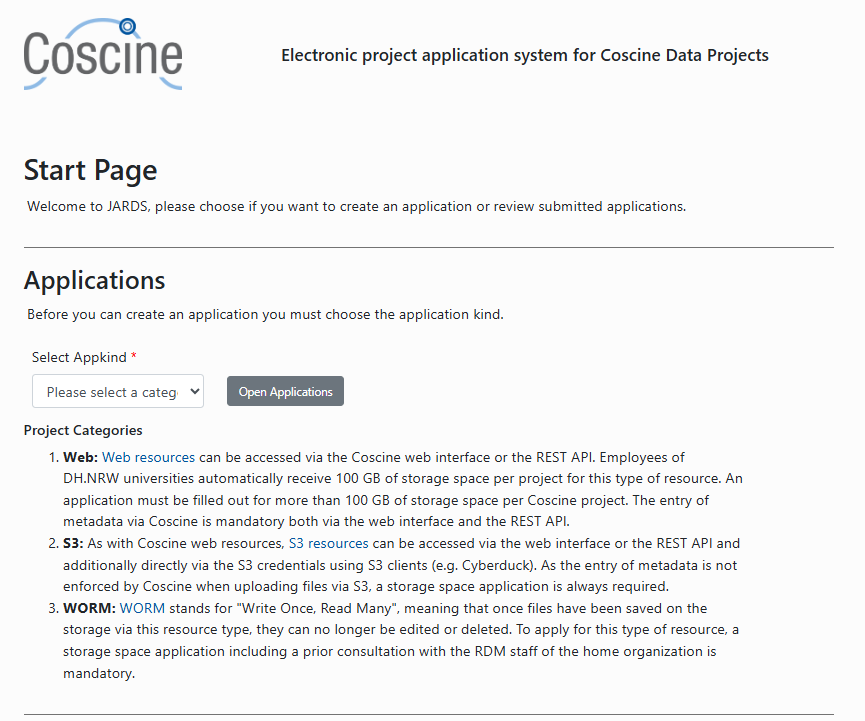
For each resource type, Coscine-JARDS provides an application form with specific questions. You should therefore first select the resource type for which you wish to submit an application in order to log in (see Figure 1).
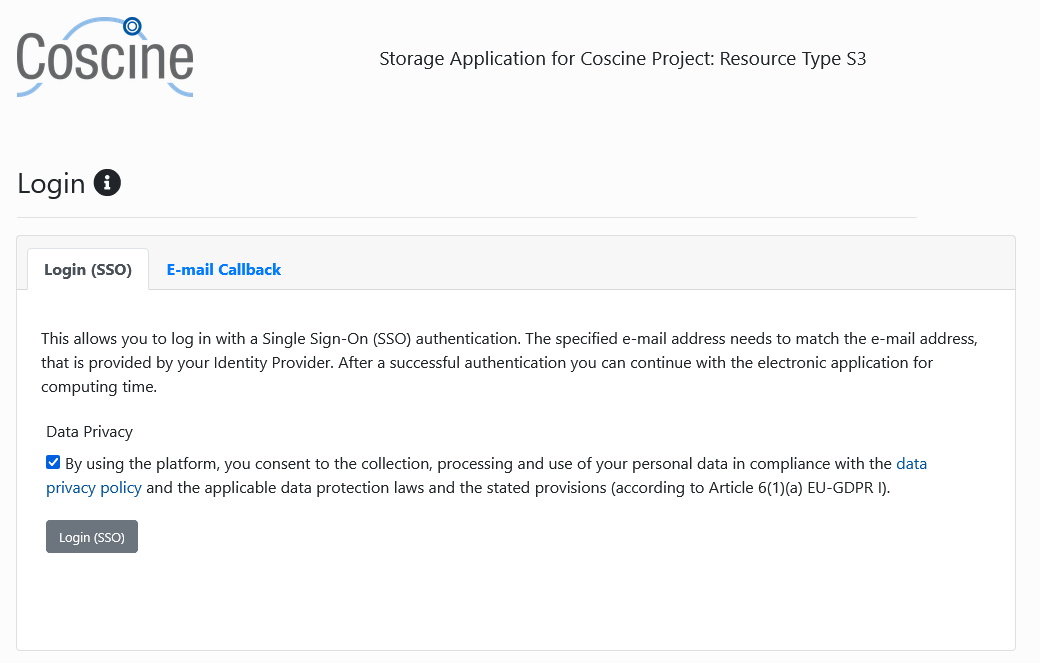
Once you have selected the resource type, click on Open Applications. The login screen will then open. Log in via Login (SSO) using your university email address, just as you would in Coscine itself (see Figure 2). You will then be guided through your university’s login process.
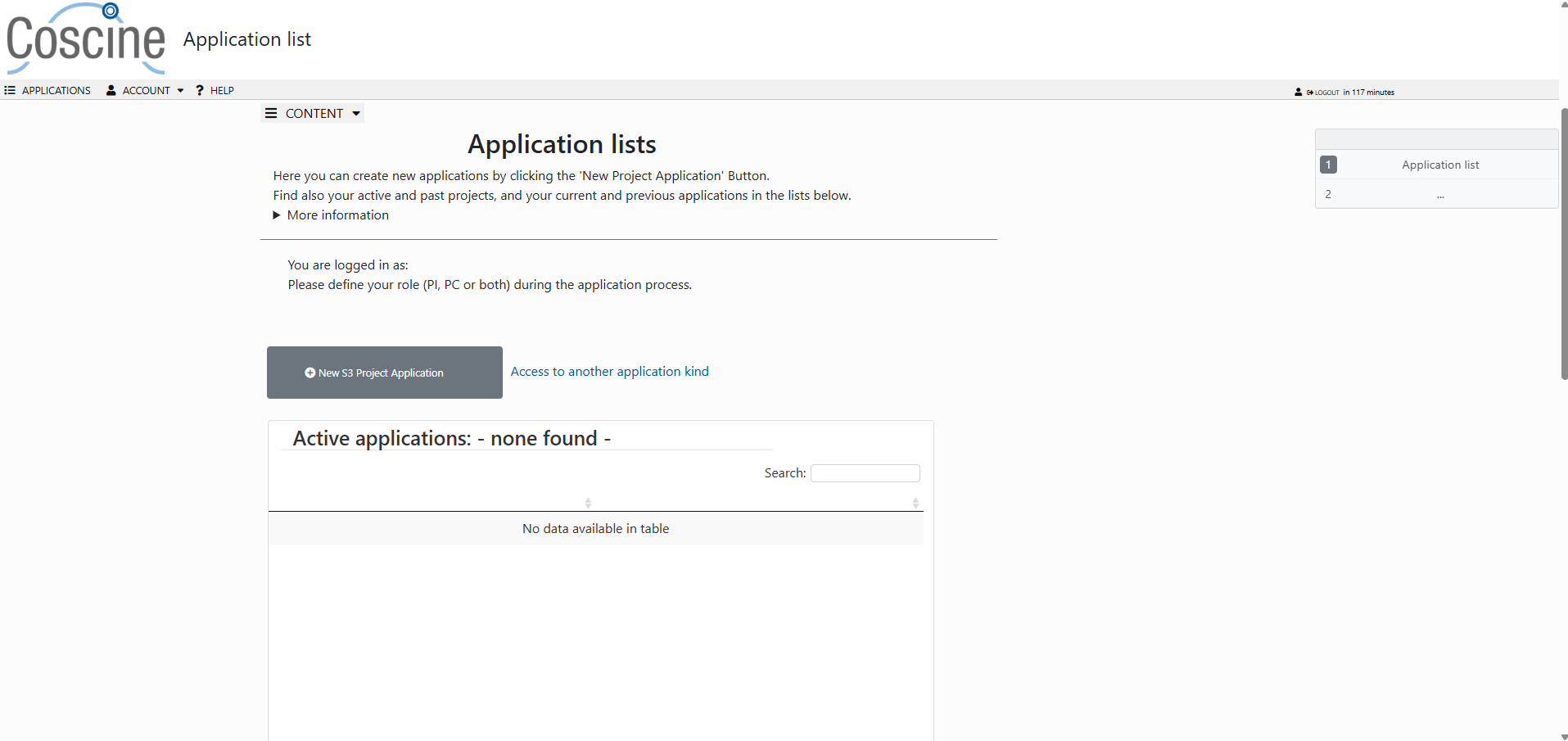
On the screen that appears after you log in, you can create new applications and edit existing ones.
Filling out the storage space application
Notes on the following points
The following screenshots and instructions are based on an example of storage space application for an S3 resource (the most commonly requested resource type). The procedure for submitting a storage space request for Web or WORM resources is the same. The application form for Web resources is slightly shorter, as metadata is entered via the UI or API. The application form for WORM resources includes additional questions regarding the necessary protection requirements for the research data. A requirement for the approval of a storage space application for WORM resources is a consultation with the RDM staff at your university.
The clarity and comprehensibility of the information you provide are key factors in the approval or rejection of your application. The Coscine Selection Policy provides guidance on how to answer the questions. On this documentation page, you will also find screenshots of the Coscine JARDS platform and notes on particularly important aspects.
Click on the New S3 Project Application button to create a new application (see Figure 3). Clicking on Access to another application kind will take you back to the home page, where you can select a different resource type and the corresponding application track.
You can now answer a series of questions required for the application. An application ID will also be assigned at this stage (see Figure 4). Please ensure that all mandatory fields (*) are completed. Otherwise, you will not be able to submit the application.
The application covers the following areas:
- Contact details and organisation
- Project information
- Workflow, structure and metadata
- Supporting material
Contact details and organisation
The email address used to log in is automatically set as the email address of the Principal Investigator (PI). Please note that the PI must hold at least a PhD or an equivalent qualification (as postdocs are generally available at their institution for longer than PhD students). Please therefore ensure that the PI’s title is entered correctly. The PI can also be designated as the Person of Contact (PC) by ticking the relevant checkbox (see Figure 4).
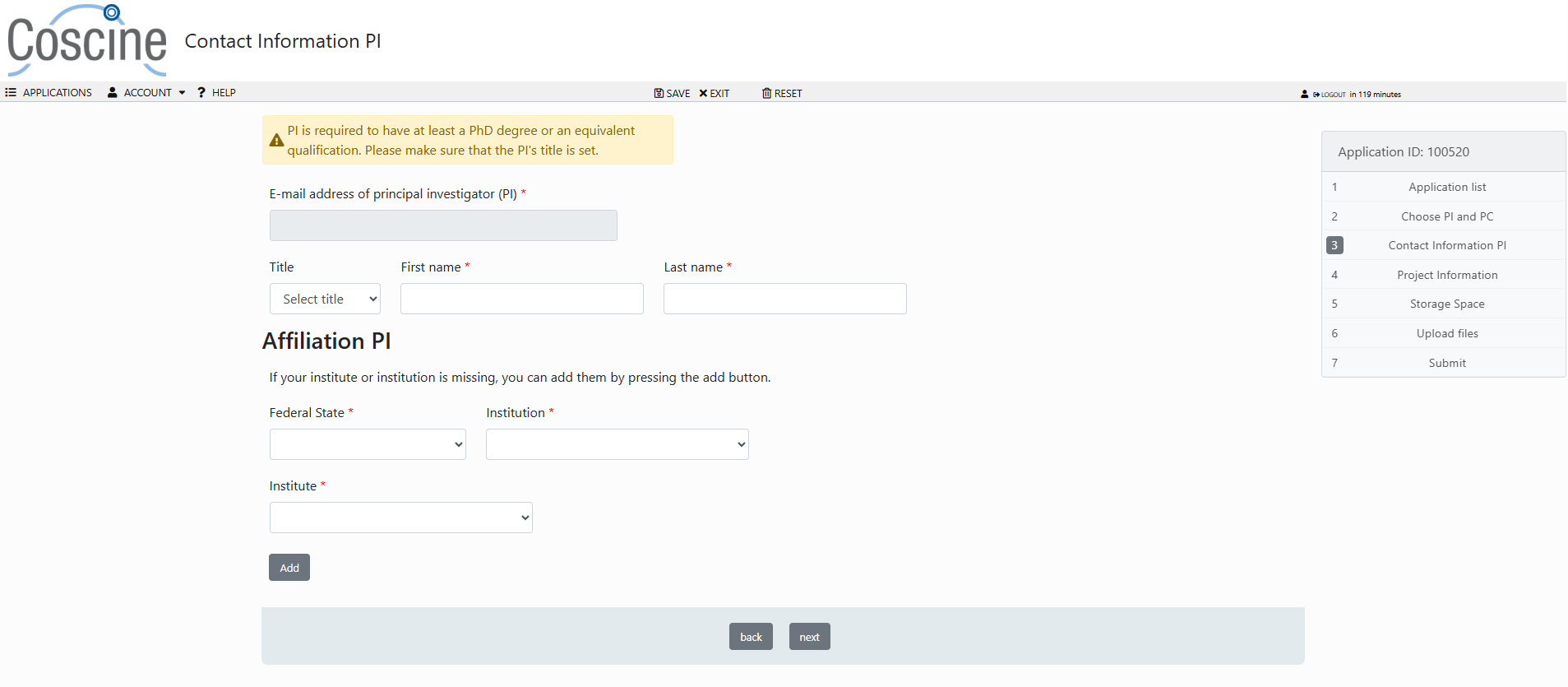
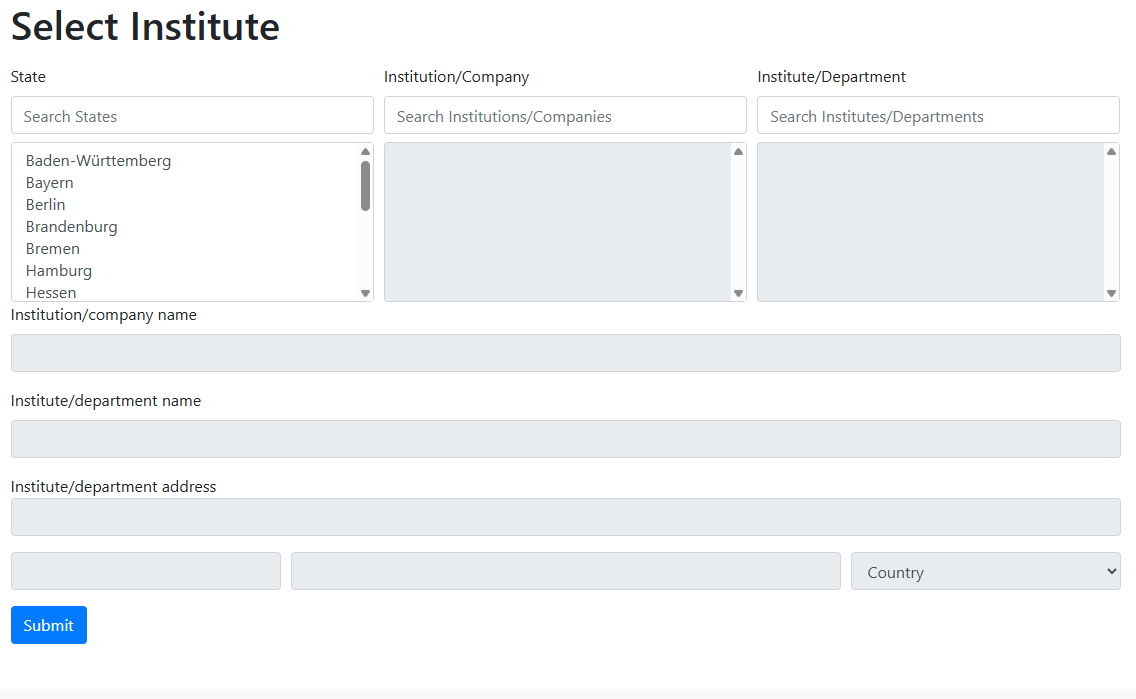
If your university or institute is not listed, you can add it manually (see Figure 5).
Project information
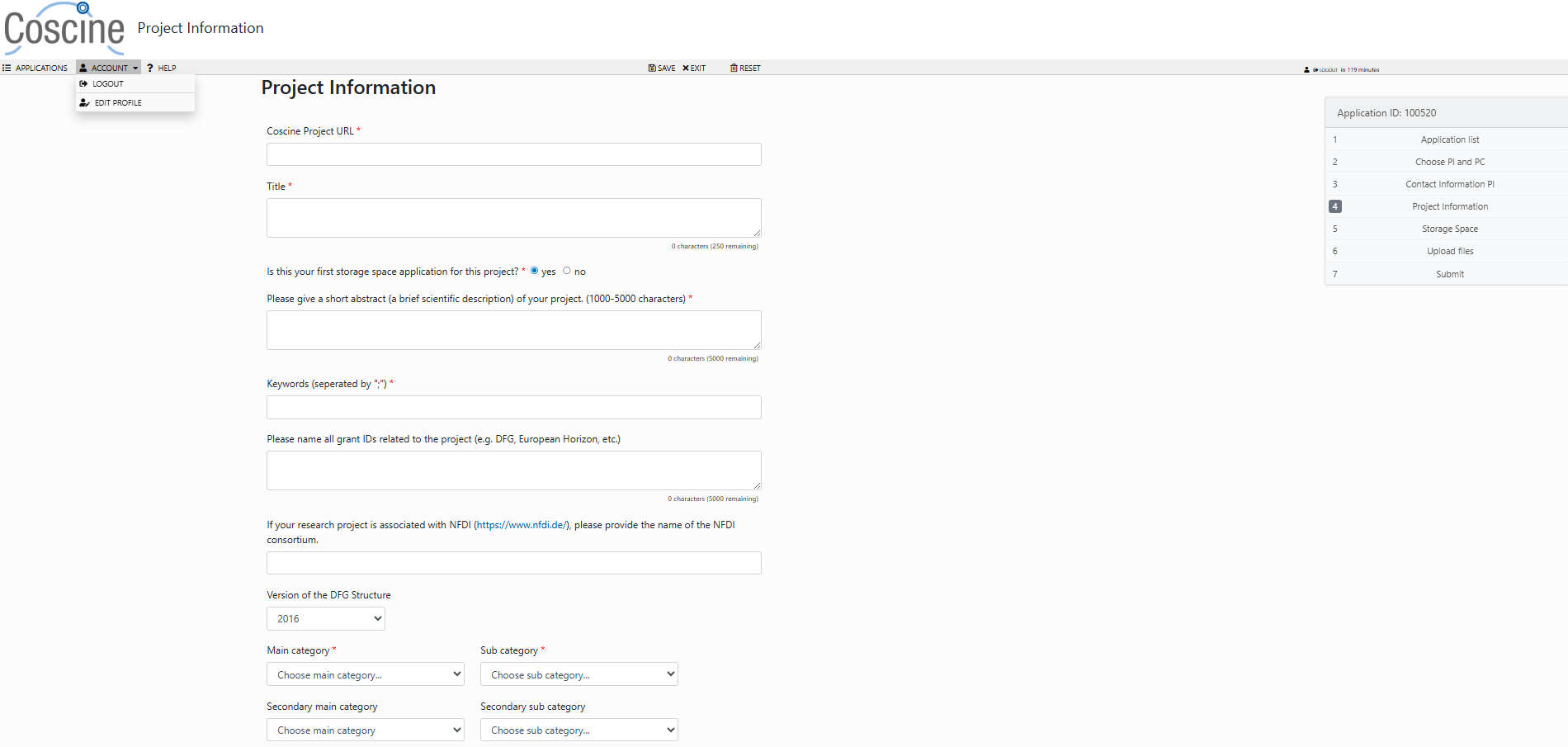
In this section, please enter details of the research project that you are applying for storage space for (see Figure 6). Please pay particular attention to the following:
Coscine Project URL: Enter the full URL of the Coscine project you have already created (as described in the process). This URL is required by the Coscine-JARDS storage space coordination team in order to allocate storage space to the Coscine project.Is this your first storage space application for this project?: SelectYesif you are submitting an initial application. SelectNoif you wish to submit a follow-up application for a Coscine project that has previously been allocated storage space.
Workflow, structure and metadata
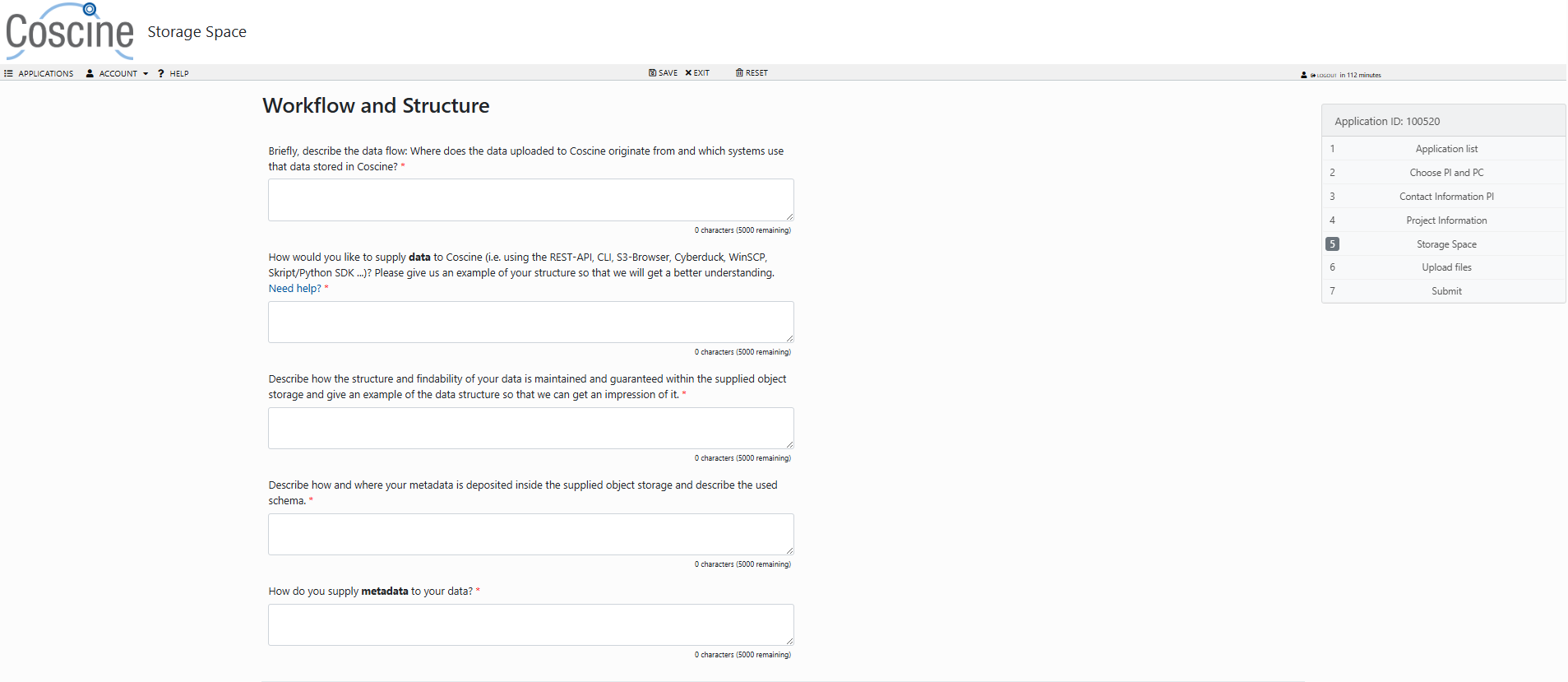
This section (see Figure 7) applies to storage requests for S3 and WORM resources. If you create a storage request for Web resources, this section is automatically skipped.
Hint: why is this section particularly important?
When you upload data to Coscine via the S3 interface, there is no automatic link to metadata management via metadata profiles. You can populate the metadata profiles using other methods (manually or via API) or submit the metadata using entirely different methods, such as README files. In this section of the storage space application, please explain clearly how you plan to submit the metadata.
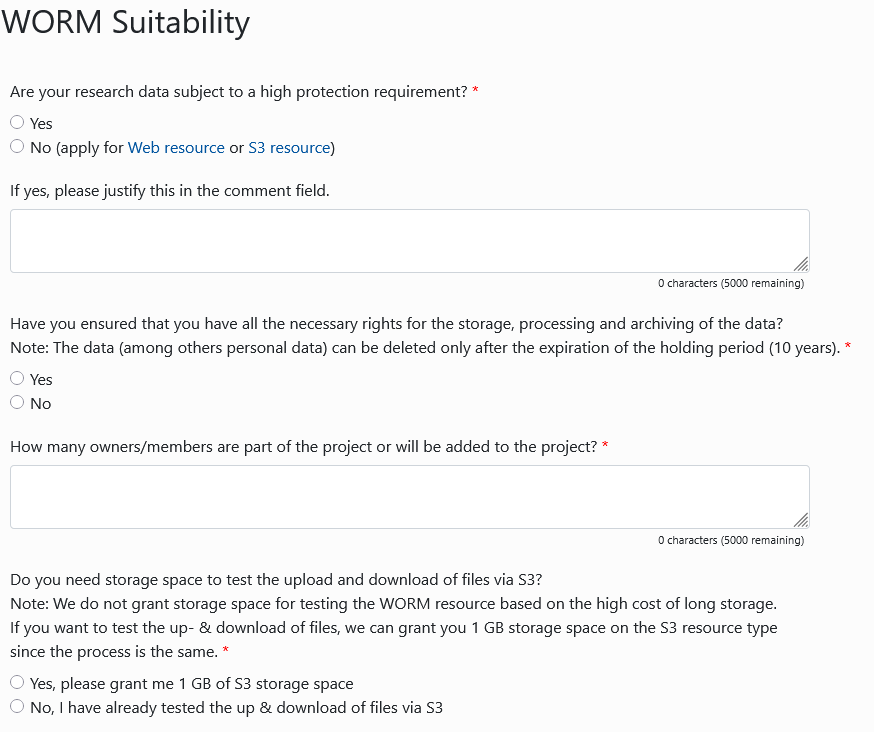
When submitting a storage space request for WORM resources, you must also answer the questions in Figure 8. Please consider your requirements for this specific type of resource carefully before submitting your application. A consultation with the RDM staff at your university is a prerequisite for the request to be submitted to the review process. This rule stems from the specific nature of WORM resources, which cannot be edited or deleted. This is to prevent unnecessary storage space from being occupied.
Supporting material
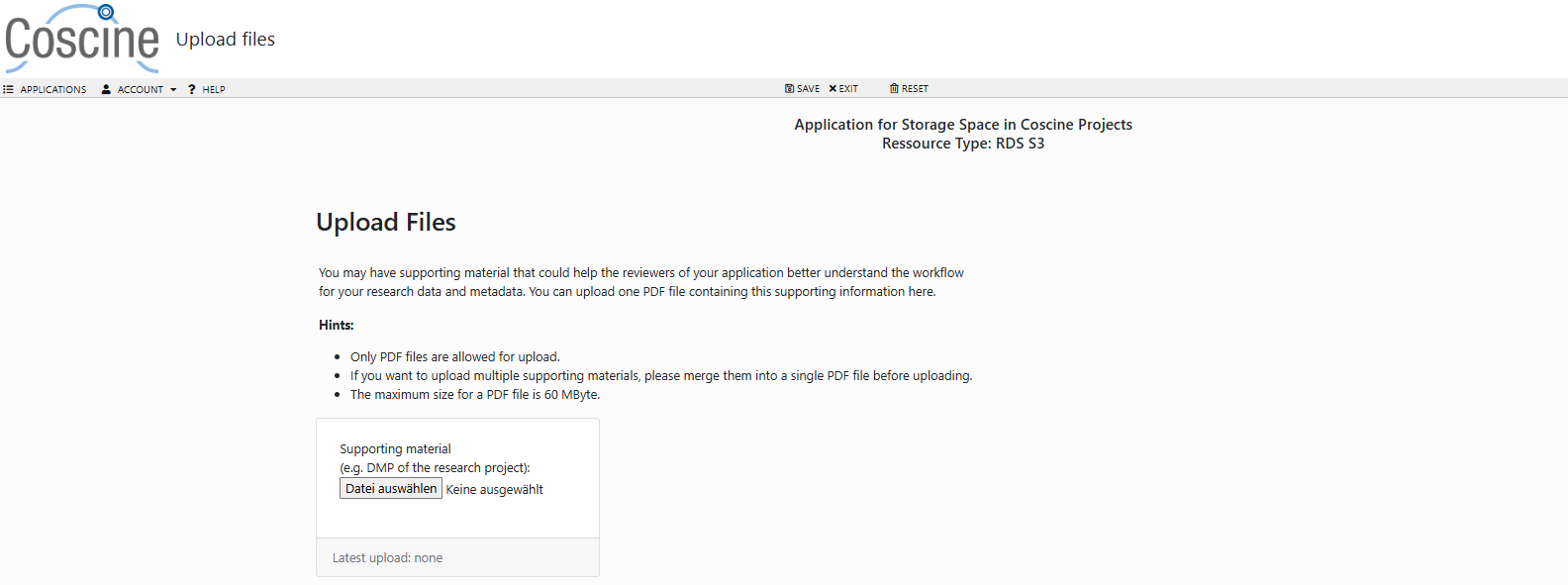
In this section, you can upload supporting materials such as a data management plan, which will help the reviewers to better understand your previous work. Please ensure that you reference and contextualise the uploaded documents within the application text (for example, are only parts of the data management plan relevant to the storage space application?). Please note the information regarding file format and size (see Figure 9).
Submission
Please ensure that the information you provide is as clear and comprehensive as possible – including reviewers from external universities who will be conducting the second review. This will help avoid any potential queries and ensure that your application is processed quickly.
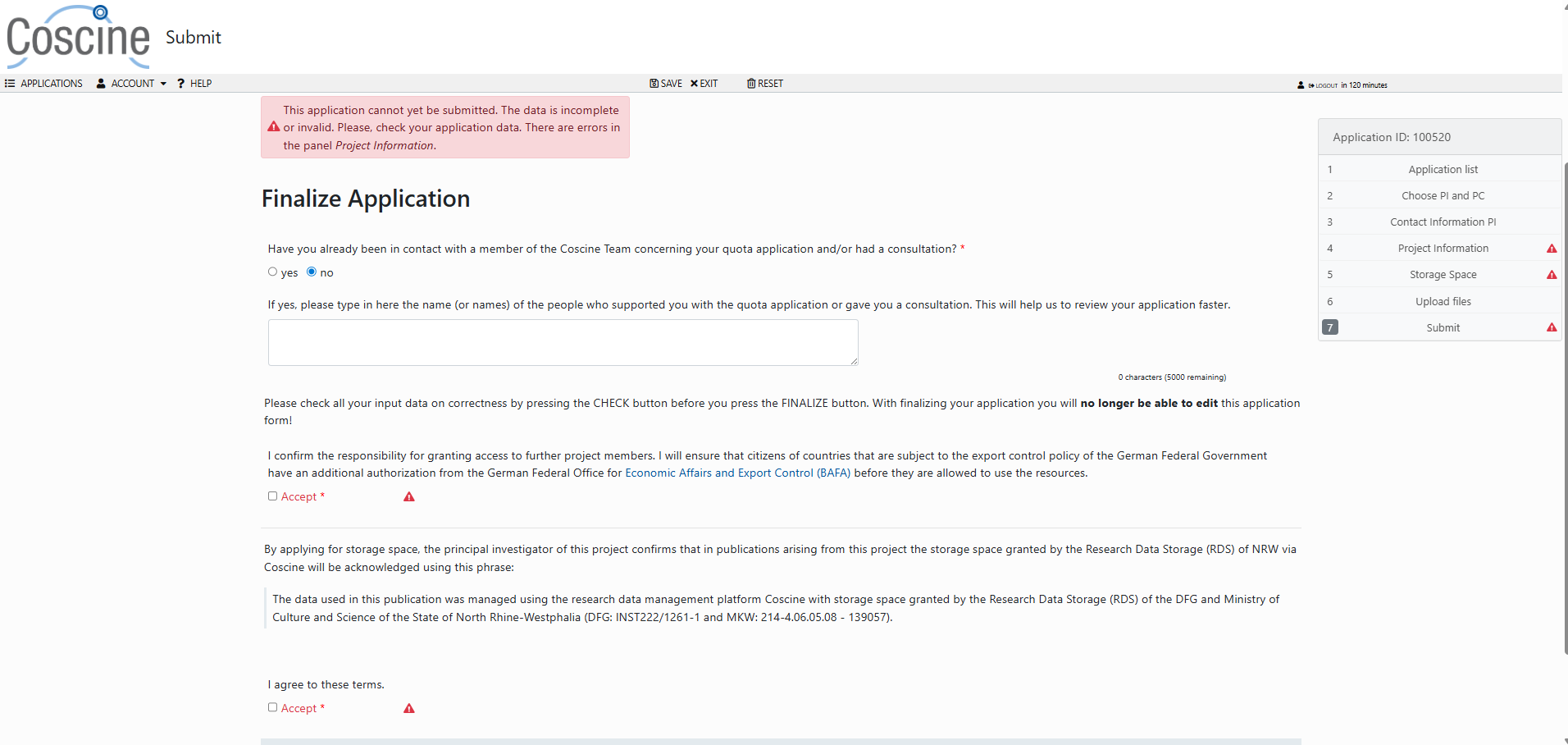
It is not possible to submit an application if one or more mandatory fields are incomplete or invalid. In this case, the missing fields and sections will be marked with red warning symbols (see Figure 10).
Hint: once submitted, you can no longer edit storage space applications
By clicking the submit button, you will send the application to the coordination team for Coscine-JARDS storage space applications. From this point onwards, you will no longer be able to edit it. You can only copy it, make changes, and resubmit it.