Managing files and folders
Files and folders in Coscine
In Coscine, files are stored under a path. Folders are simply this path. Folders therefore do not exist as individual data units, as is the case, for example, with folders in a Windows system.
Extending the path allows files to be grouped. For example: ../myFolderName/File1.png and ../myFolderName/File2.png. Coscine displays this grouping as a folder on the interface.
Therefore, whenever this documentation refers to folders, it is referring to these paths.
You can find an overview of the folder actions currently available at the bottom of this page.
Various actions are available for managing files and folders in Coscine:
Read-Only Mode is not possible at the file level, but only for resources. See Read-Only Mode.
Select files
Files are selected in the Coscine web interface using the file explorer, the window in the middle of the resource view. You can select files individually by clicking on the document icon on the left-hand side.
Multiple Selection
You can select multiple files simultaneously in the file explorer and handle a subset of the selected files in the metadata manager.
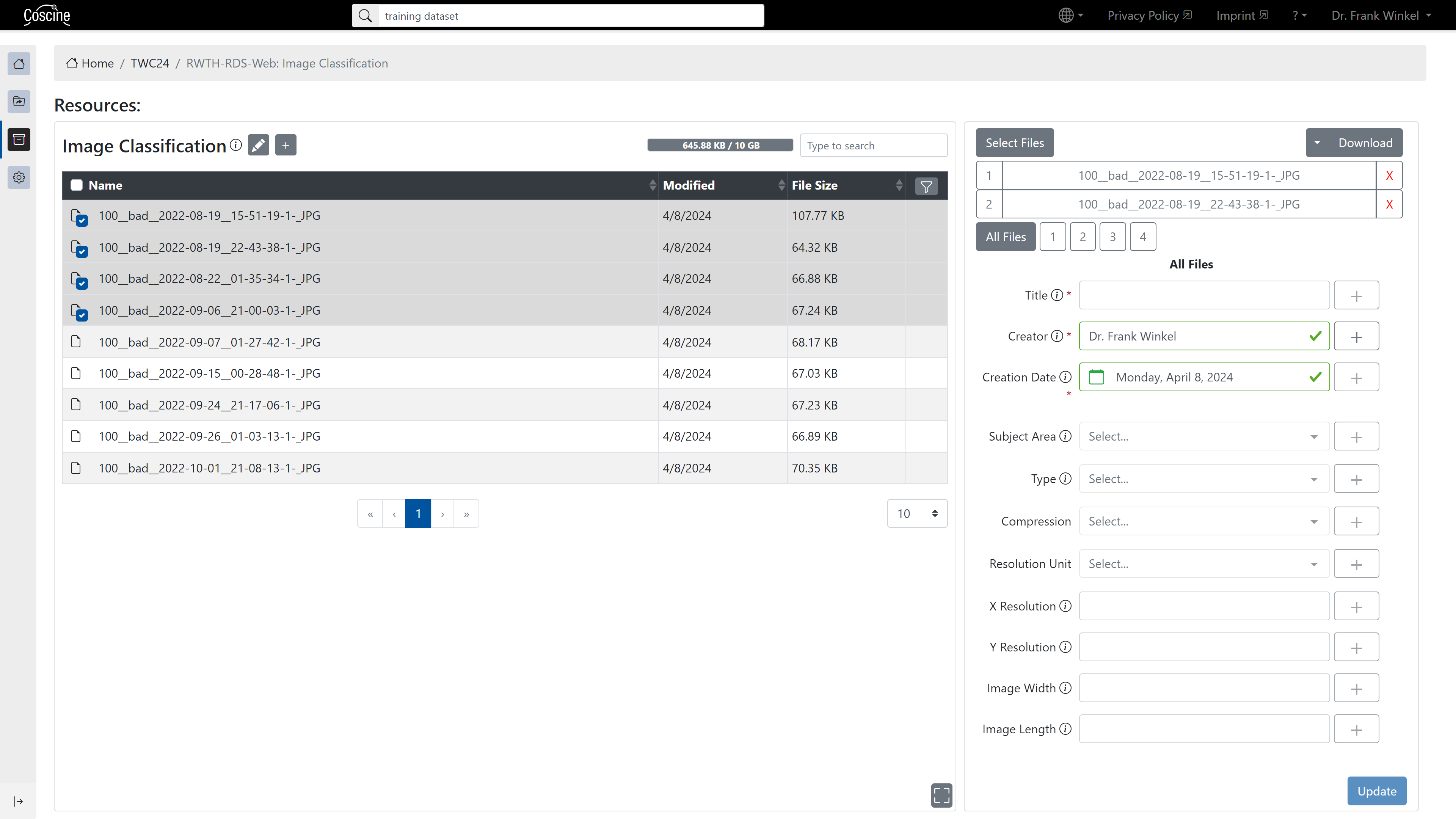
If you want to select all files, you can click on the checkbox in the header. To exclude individual files from the multiple selection, click the corresponding red X in the metadata manager (see Figure 1).
Hint
For simultaneous editing, the ALL FILES area must be selected in the metadata manager.
Example
The first five files are selected simultaneously in file explorer (on the left). In the meta data manager (on the right) only the first file (file index 1) is selected for editing (see Figure 1).
Folder actions
The following tables list actions relating to folders and subfolders (first table) and actions relating to files in folders (second table). The icons indicate whether the respective action is currently available.
Folder actions are being continuously developed. The table shows, in brackets, the priority given to the development of features that are not currently available. As the actual implementation depends on many factors, it is not possible to make any firm statements regarding the exact release date. A table legend can be found below the tables.
| Action (Folders and Subfolders) | API | S3 | UI |
|---|---|---|---|
| Create an empty folder | ✔️ | ✔️ | ❌ (1) |
| Upload a folder containing files | ✔️ | ✔️ | ❌ (1) |
| Rename folder | ❌ (4) | ✔️ | ❌ (4) |
| Delete folder with containing files | ❌ (3) | ✔️ | ❌ (3) |
| Delete empty folder | ✔️*** | ✔️*** | ✔️*** |
| Create folder metadata | ✔️ | ❌* | ❌ (2) |
| Edit folder metadata | ✔️ | ❌* | ❌ (2) |
| Action (File in Folder) | API | S3 | UI |
|---|---|---|---|
| Upload file to folder | ✔️ | ✔️ | ✔️** |
| Rename file in a folder | ❌ (4) | ✔️ | ❌ (4) |
| Delete file in folder | ✔️ | ✔️ | ✔️ |
| Upload new version of the file to the folder | ✔️ | ✔️ | ✔️** |
| Update file metadata in a folder | ✔️ | ❌* | ❌ (2) |
Table legend
✔️ = Currently available
❌ = Currently not available
1–4 = Prioritisation, with 1 being the highest
* Technically not feasible
** Limitation: It is currently possible to upload a file, but the link between the metadata and the data is not established. Consequently, the files cannot be found via the search function. This issue is being addressed as a priority 1 matter.
*** folder which contain versions, can not be deleted, despite looking empty in S3 clients or the user interface.