Upload methods
There are three different methods for uploads, depending on the resource type:
- Coscine Web-UI: Upload via the web interface with subsequent metadata adding for each file
- Coscine API: Automated uploading and adding metadata
- S3 Clients: For S3 ressources to upload many files at once
Hint
The maximum filesize for the upload is 100 GB for the webinterface and the API. Larger files can only be uploaded when using S3-Clients for S3-resources.
Upload via Web-UI
You can upload files and folders via the user interface.
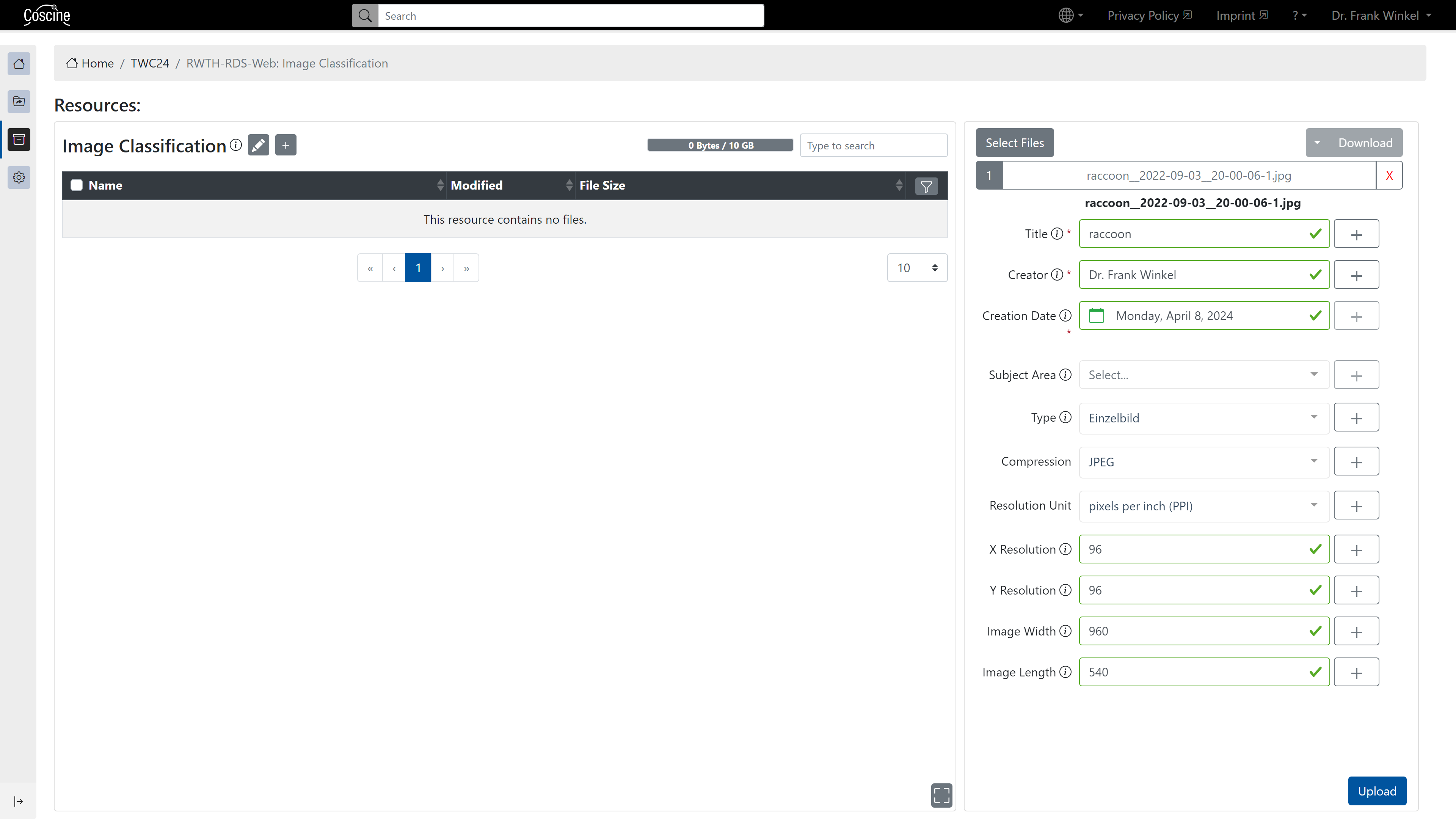
File upload via web UI
Uploading files is done in four steps (see figure 1):
- Click on the plus symbol next to the resource name.
- Select one or multiple files.
- Specify metadata in the metadata manager for each individual file or once via
All Files(fields with an asterisk (*) are mandatory). - Click on
Uploadin the file context menu.
Hint
If a file upload fails, it may be because the filename contains special characters that are not allowed. For example, when planning to use consistent filenames, be sure to avoid these special characters: \ : ? * < > | + #
Files are now visible in the table with name, upload date ("modified") and file size. The metadata schema was selected when creating the resource. The metadata entered here can be changed later in the metadata manager. The metadata schema of a resource cannot be changed (for more on this topic, see Metadata and Metadata Profiles).
Folder upload via Web-UI
Uploading folders offers the option to upload many files at once. You can choose whether all files should be given the same metadata during upload or whether you want to add individual metadata.
Attention: Folder actions are currently restricted
Various folder actions via the API, S3 clients, and the UI are currently not available. Here you’ll find an overview of the current status and planned future developments.
Upload via S3 client for S3 resources
S3 resources can be accessed via S3 clients. Read more on the clients and processes.
Failed uploads
Warning
Failed Uploads will block space until deletion from system. The current deletion policy will delete the data from failed uploads after 7 days.
A typical reason for failed uploads is that the file size exceeds the maximum quota. Users need to calculate the filesize which they want to upload versus leftover space manually before uploading. This is relevant as in some S3 clients (e.g. Cyberduck) the upload will start without a warning and run until it fails and the space is blocked. Individual files that can be completed before the upload fails will be correctly saved and will be accessible via S3 client and web UI.