Versioning of files
A versioning feature is available for files uploaded to the Web, S3 and WORM resource types. It is intended to enable the recovery of overwritten or deleted files within a short period of time, and is not intended for the long-term storage of versioned files. There is no maximum number of file versions that are retained.
Hint: Coscine's storage system behaves differently from modern operating systems
Coscine’s storage system – DataStorage.nrw – is an S3-based object storage solution. This type of storage differs in various ways from user-friendly modern operating systems such as Windows, Linux and Mac OS. Consequently, the management of file changes, versioning and folders must be organised differently and planned more carefully.
If you upload a file with the same name as an existing one, two things happen:
- The newly uploaded file is saved. You can view it in the user interface, the API and the S3 client, and interact with it.
- The overwritten file is retained as a previous version. It is not visible in the user interface, the API and (normally) in the S3 client. After a defined period during which it could be restored, it is permanently deleted.
When you delete a file, the following two actions take place:
- The deleted file disappears from the user interface, the API and the S3 client.
- The overwritten file is retained as a previous version. It is not visible in the user interface, the API and (normally) in the S3 client. After a defined period during which it could be restored, it is permanently deleted.
Warning: Versions take up storage space
Versions – just like the actual files themselves – take up storage space within your resource, even if they are not visible. Storage space occupied by deleted versions is automatically released seven days after deletion. During these seven days, it is possible to restore them; after that, it is no longer possible.
Deleting versions
Versions currently cannot be deleted manually. Nor can the policy defining the retention period be changed. After seven days, they are automatically and permanently deleted. Integration into the web interface is planned for the future, so that more customisable settings for deleting versions will be possible.
Display versions
For Web, S3 and WORM resources, information on the versions and their storage requirements can be viewed via the user interface and in S3 clients.
Displaying storage space usage in the user interface
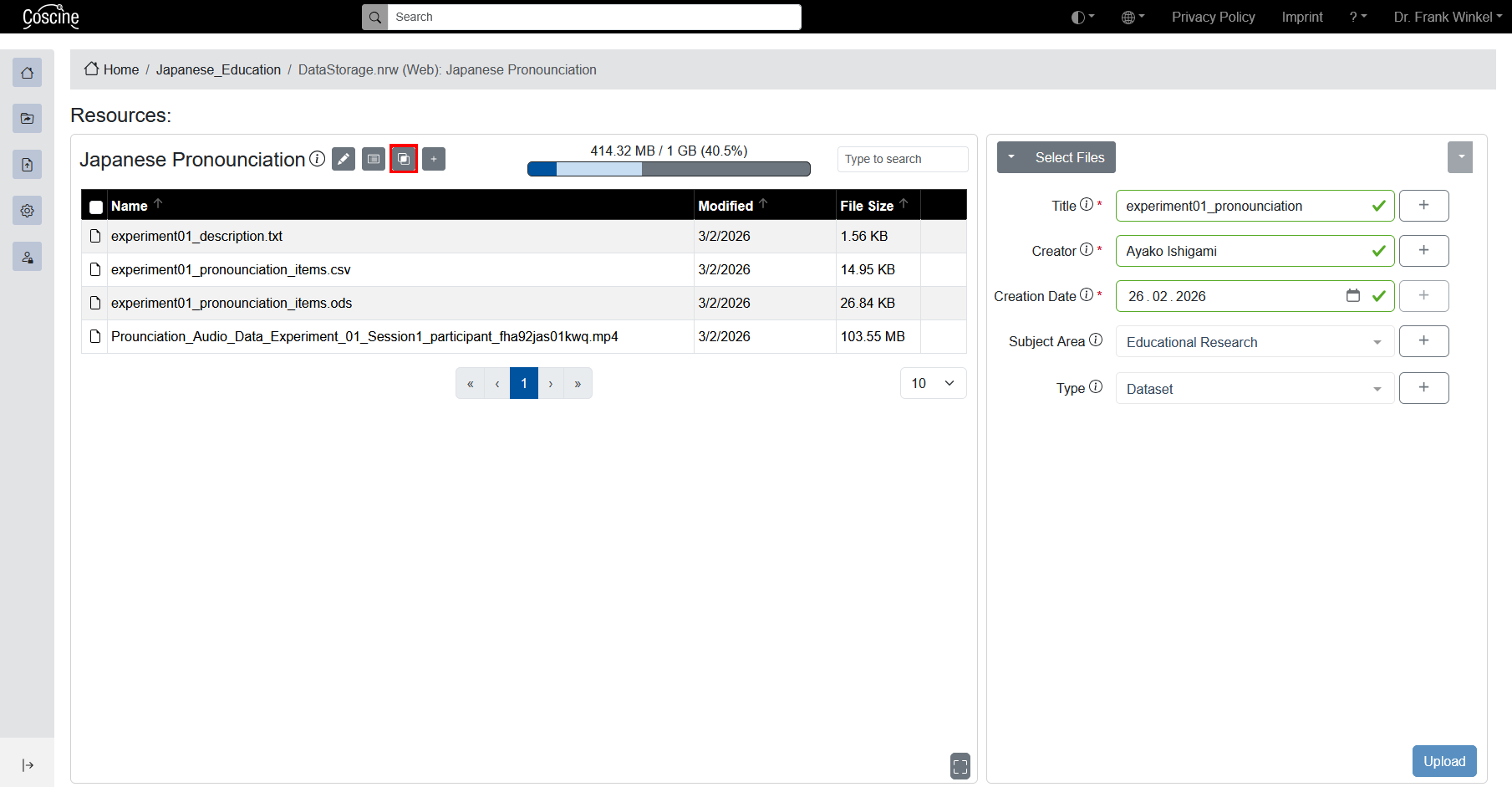
The display of storage space used by versions is not visible in the standard view of the user interface, in order to ensure reasonable page loading times, as retrieving this information can place a significant load on the system when there are a large number of files. This display can be activated using the button showing the two overlapping squares. Before this, the overall storage space overview is displayed in dark blue – or dark red if storage utilisation is high.
Once you have clicked the button, the storage space is divided into three categories:
- Dark blue: current files
- Light blue: versions
- Grey: free space
You can view this information both in the resources view (see Figure 1) and in the Resource details.
Due to variations in the timing of deletion, it is not possible in practice to provide a detailed breakdown of when individual versions are deleted and storage space is consequently freed up.
Display in S3 clients
Versions are not usually displayed in S3 clients. Some clients do offer this feature, but even then these versions cannot be deleted and continue to take up storage space until they are finally deleted after seven days.
Delete empty folders containing versions
Empty folders can normally be deleted in Coscine. If you encounter problems doing so, it is often because these supposedly empty folders still contain versions. These versions may no longer be visible, but they continue to take up storage space until they are permanently deleted after seven days. After that, the folders can be removed.
Best practices for space-efficient versioning
Versions can be an important factor when planning the quota you’ll need. Try to plan in advance how often you’ll be overwriting or deleting files – in other words, creating versions.
Frequency of updates
If you update all your data once a week, you will save two versions of each file from the first overwrite onwards. If you update daily, you will save as many as seven or eight versions. Plan the frequency of your data updates accordingly. It is not possible to request additional storage space for versions.
Re-upload individual files in folders
A typical scenario in which numerous versions are created at once is when you re-upload entire folders in which only a few files have been changed. If you regularly upload newer versions of files, do so individually rather than by folder.